

Bringing Gumloop agents into Microsoft Teams

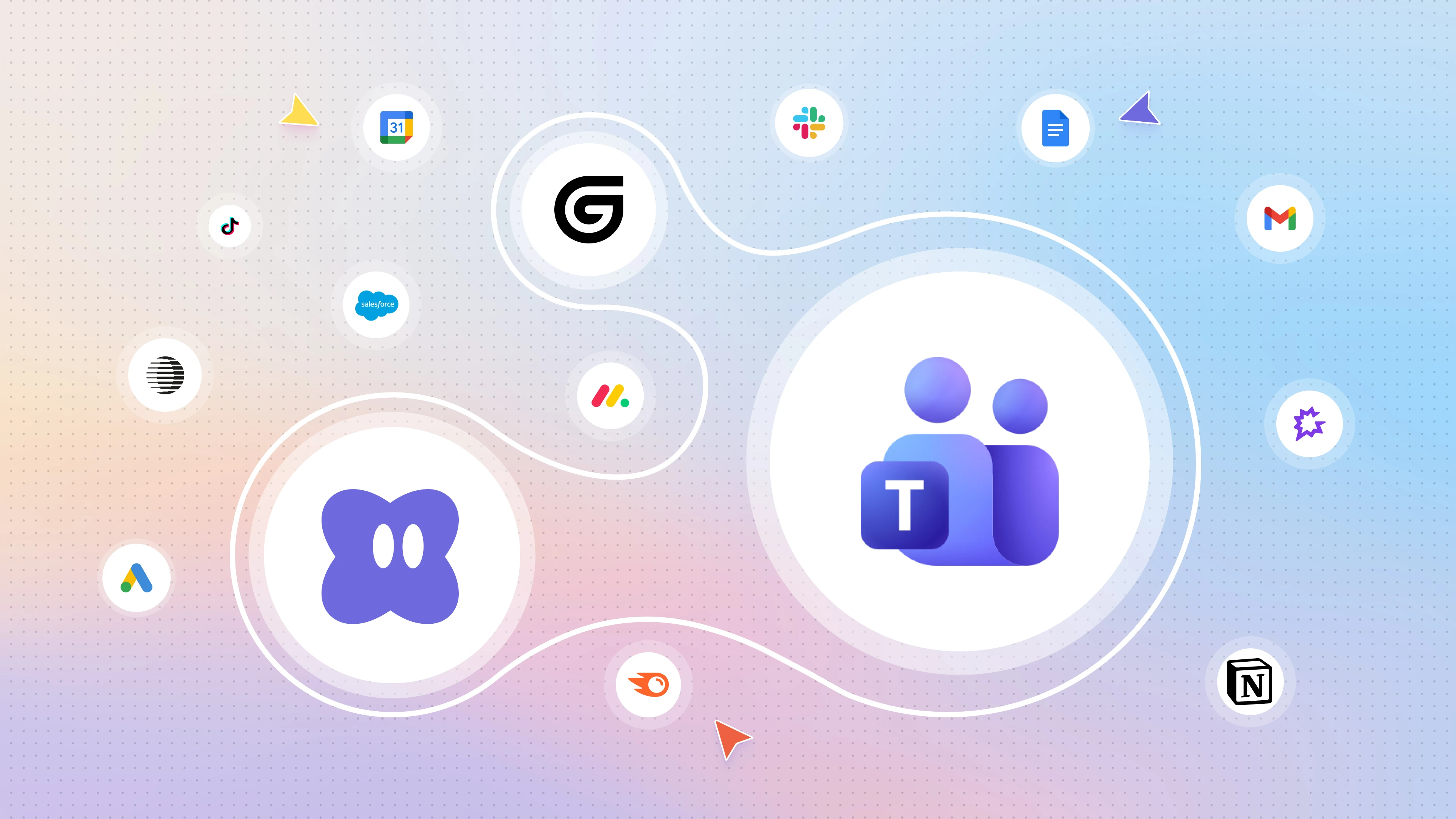
Chat with your Gumloop agent in Microsoft Teams and it’ll read, reply, and do work, just like a teammate.
The best way to get your team using AI agents is to bring agents to where people are already working. Nobody wants to open yet another tab. That’s why we gave Gumloop agents email inboxes, and why Gumloop agents have been available in Slack since the very beginning.
Now, every Gumloop agent can also work directly inside Microsoft Teams. Add your agent to a channel, @mention it like you'd tag a colleague, and it gets to work. The agent responds to your prompts, pulls data from its connected apps, runs its skills, and posts its progress right there in the thread. No switching tabs or copying and pasting between tools.
Here are some things your team can do with an agent in a Teams channel:
- Get account context in your #sales channel: heading into a call, @mention the agent for a quick brief on the account (recent Salesforce activity, open support tickets, and most recent touchpoints) without leaving the conversation.
- Answer data questions in your #analytics channel: let anyone on the team @mention the agent to ask "how did signups trend last week?" and get an answer pulled straight from your warehouse.
- Kick off reports from your #ops channel: @mention the agent to generate the weekly metrics deck or a status report, and it'll hand back a shareable file when it's done.
It only takes one expert to build an agent, and by adding that agent to Teams, you’re giving everyone in the org the ability to use that agent as a default tool, in the same place where they’re already doing their work.
Setting up an agent in Teams
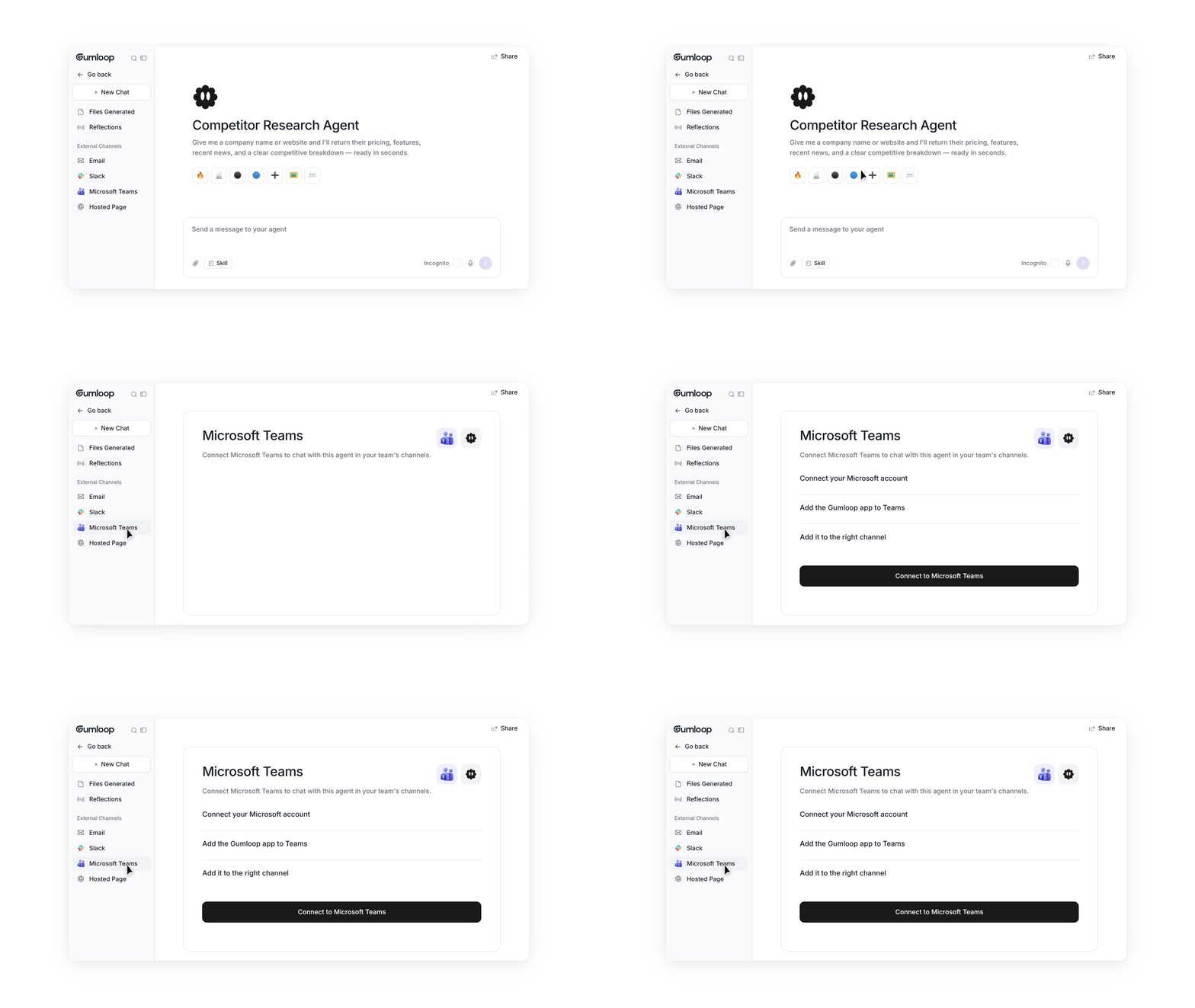
In any agent, select the Microsoft Teams option in the External Channels tab, then click the “Connect to Microsoft Teams” button. Follow the authentication flow and prompts, then add the agent to any public channel. Once it's there, anyone in the channel with access to the agent can @mention it to start a conversation. The agent uses the same instructions and skills it already has.
For more details on exactly how Gumloop agents work in Microsoft Teams, check out our support docs.

Read related articles
Check out more articles on the Gumloop blog.